
Manual and documentation:

Hints on the update to version 6.x with POP3 SSL support:
if your version is older then 5.x then you need to aply an update to v5.x first.
You can take over an existing configuration by simply copying the files Pop2Exchg.cfg and Pop2Exchg.set to the new installation directory. The next time the program is started, you will be asked to take over the configuration.
after taking over an old configuration, you can do a right click on a profile in the list. This will bring up a menu:
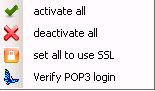 Here you can change all profiles to use POP3 SSL at once.
Exchange Server POP3 POP3-SSL TSL 995 smtp pullmail forward mail forwarding poping collect mailaccount account imap mailredirect redirect fetchmail pumpmail mail2smtp emailforward SmartPop2Exchange MailGate Connector GetMail gateway Small Business Server Attachment Exchange Server POP3 POP3-SSL TSL 995 smtp pullmail forward mail forwarding poping collect mailaccount account imap mailredirect redirect fetchmail pumpmail mail2smtp emailforward SmartPop2Exchange MailGate Connector GetMail gateway Small Business Server Attachment Exchange Server POP3 POP3-SSL TSL 995 smtp pullmail forward mail forwarding poping collect mailaccount account imap mailredirect redirect fetchmail pumpmail mail2smtp emailforward SmartPop2Exchange MailGate Connector GetMail gateway Small Business Server Attachment Exchange Server POP3 POP3-SSL TSL 995 smtp pullmail forward mail forwarding poping collect mailaccount account imap mailredirect redirect fetchmail pumpmail mail2smtp emailforward SmartPop2Exchange MailGate Connector GetMail gateway Small Business Server Attachment Exchange Server POP3 POP3-SSL TSL 995 smtp pullmail forward mail forwarding poping collect mailaccount account imap mailredirect redirect fetchmail pumpmail mail2smtp emailforward SmartPop2Exchange MailGate Connector GetMail gateway Small Business Server Attachment Exchange Server POP3 POP3-SSL TSL 995 smtp pullmail forward mail forwarding poping collect mailaccount account imap mailredirect redirect fetchmail pumpmail mail2smtp emailforward SmartPop2Exchange MailGate Connector GetMail gateway Small Business Server Attachment Exchange Server POP3 POP3-SSL TSL 995 smtp pullmail forward mail forwarding poping collect mailaccount account imap mailredirect redirect fetchmail pumpmail mail2smtp emailforward SmartPop2Exchange MailGate Connector GetMail gateway Small Business Server Attachment